Mod Organizer 2
Mod Organizer 2 (MO2) is an open source game mod manager, mainly used for Bethesda games. Its main features are:
- Virtual Filesystem (USVFS): MO2 does not install mods directly into the game's folder, but rather creates a virtual filesystem that the game reads from. This allows for:
- Safe mod installation and uninstallation,
- Being able to modify mod install order at any point,
- Having multiple profiles with different mod setups,
- Keeping original game files clean. The downsides to USVFS are:
- Mods installed through MO2 are "visible" only to programs launched using MO2,
- Some programs may not work properly with MO2's virtual filesystem,
- USVFS can cause performance overhead if you have tons of loose (not-BSA/BA2) files,
- USVFS works by "hooking" into the game (similarly to mods such as NVSE plugins, ReShade, etc.). This method can be considered as unsafe by some antivirus software due to its memory-invasive nature.
- Profile System: MO2 allows you to create multiple profiles with different mod setups, saves, and settings.
- Two pane interface: MO2 is split into two sides, the left side is the modlist and the right side is the plugin list. This allows for easy conflict resolution and mod management.
- Portability: Thanks to the use of USVFS, MO2 has a "portable" mode that allows you to move the entire MO2 folder to another location with minimal setup.
- Modding Community Integration: MO2 has built-in support for Nexus Mods, allowing you to download mods directly from the Nexus. It also has a plugin system that allows for creation of custom plugins to extend its functionality.
Can I download mod packs?
Mod Organizer 2 has NO support for Nexus Collections, so you will have to download mods one by one. This is not a big issue, as the guide will provide direct links to the mods you need. Additionally, most collections are not well curated and as a result, low quality..
The closest alternative to Collections is Wabbajack, which is a community-made modlist installer that can install entire modlists with a single click. Due to its higher bar of entry for modlist creators, Wabbajack lists tend to be of higher quality compared to Collections.
Why Mod Organizer 2?
Mod Organizer 2 has been chosen for our guides due to its ease of use and its ability to keep the game's folder clean. This is important because it allows for easy conflict resolution and mod management, and makes correcting mistakes trivial - installed mods in the wrong order? Just drag them into the correct position!
Compared to Vortex, MO2 doesn't hide the most important parts of modding from the user, making it easier to understand what is happening and why, albeit at the cost of potentially looking scary at first.
That said, we are well aware that MO2 is not perfect, and it has its own set of issues and limitations, but it is the best tool for the job.
Installation
- Download Mod Organizer 2 from here
- Once the download has finished, run the installer.
- Accept the license, click Next.
-
When asked about the install location, change
MO2toViva New Vegasand click Next.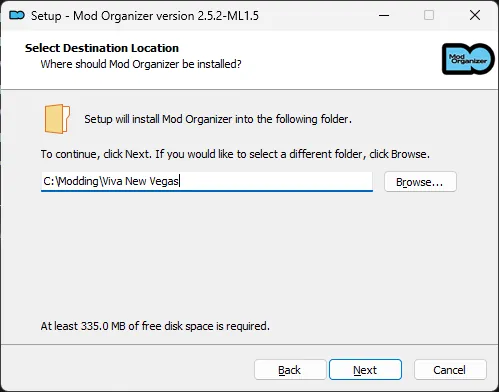
What if I want to install MO2 elsewhere?
If you wish to install Mod Organizer 2 in a different location, you can do so by clicking the Browse button and selecting a different folder.
The folder MUST be outside of the Windows system folders and outside of the Root folder.
It's discouraged to store MO2 on your Desktop or in your Documents if you use OneDrive, due to potential issues and degraded performance.
-
On the install components page, use the defaults.
-
When asked about the Start Menu folder, change
Mod OrganizertoViva New Vegasand click Next.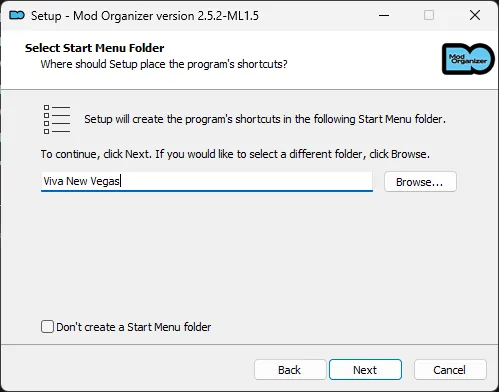
-
Don't create a desktop shortcut – we will create our own later.
- On the final page, click Install
- Once the installation is complete, ensure that Launch Mod Organizer is ticked and click Finish.
If Mod Organizer 2 refuses to open, try these steps in the FAQ.
- Download the Mod Organizer 2 installer from here.
- Extract the archive in your Downloads folder.
-
Open the extracted
mo2installer-furglitchfolder.I am getting an error when I attempt to open the installer
- Navigate back to the window where you have opened the mo2installer-furglitch folder.
- Press Alt+Shift+F4. This will open a Konsole window in the MO2 installer folder. Konsole is the SteamOS 3 terminal
- Type in
./install.shAnd then press the Enter key on your keyboard. This will then show you the error you are receiving when attempting the install process. You may follow the instructions on screen to resolve the error.
-
Double click the file marked
install.sh - When prompted, scroll down the list and select Fallout: New Vegas
- When prompted to install the script extender for your game, click Yes
- When prompted to archive your prefix, click Yes.
- Follow the on-screen instructions to create a clean Fallout New Vegas prefix, then click All done. let's continue.
- When prompted on where you would like to install Mod Organizer 2, choose the default location.
Once installation is complete, MO2 will automatically launch when you open Fallout New Vegas from Steam or Heroic Games Launcher.
If Mod Organizer 2 refuses to open, try these steps in the FAQ.
Setup
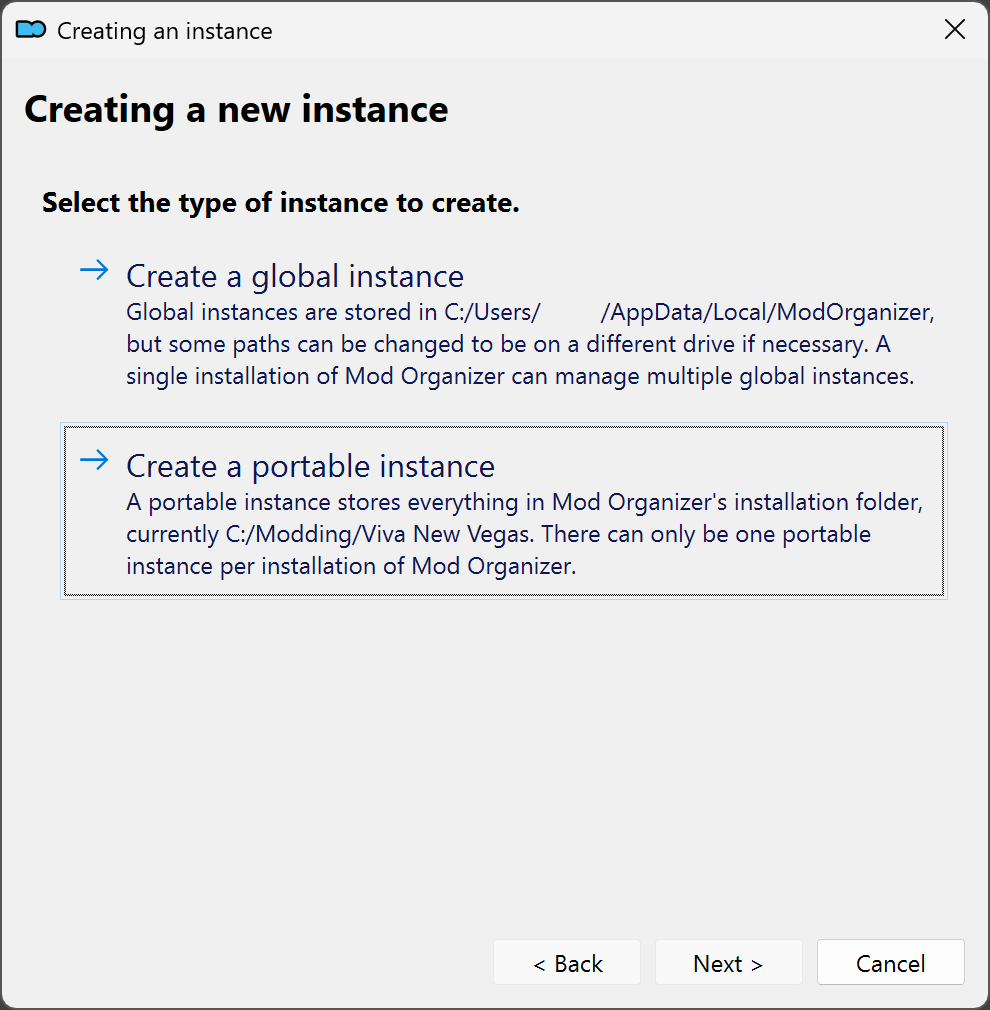
- On the instance creation page, select Create a portable instance, click Next.
- Select New Vegas, click Next.
- Select the platform you have purchased the game from, click Next.
- When asked about profile settings, enable all options and click Next.
- Keep the default file path.
-
Click Connect to Nexus.
I'm running out of space on my storage device.
To reclaim hard drive space, you can check the Show advanced options box and change the Downloads file path to a different location, such as a microSD card or second hard drive.
This will not affect the game's performance. Downloaded mods can be deleted after they have been installed. -
On the last page, select Finish.
- If you see a
Show tutorial?pop-up, select No. - If you see a
Register?pop-up, select Yes. - If you see a
INI file is read-onlypop-up, select Remember my choice from the drop-down at the bottom then click Clear the read-only flag. - If you see a
FalloutNV_lang.esp was foundpop-up, select Yes.
MO2 Settings
- Click the X in the bottom right of MO2 to close the log window.
- Click the MO2 settings button at the top of MO2 to open the settings.
- If you wish, you can select a different theme.
- In the Nexus tab, select Connect to Nexus.
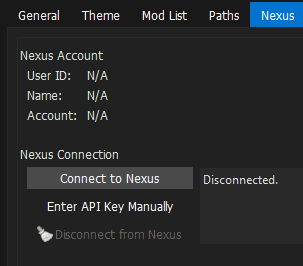
- MO2 will open your browser and prompt you to authorize the connection.
- Once you authorize it, you can close your browser and of the MO2 settings.
- Allow MO2 to restart.
Game Settings
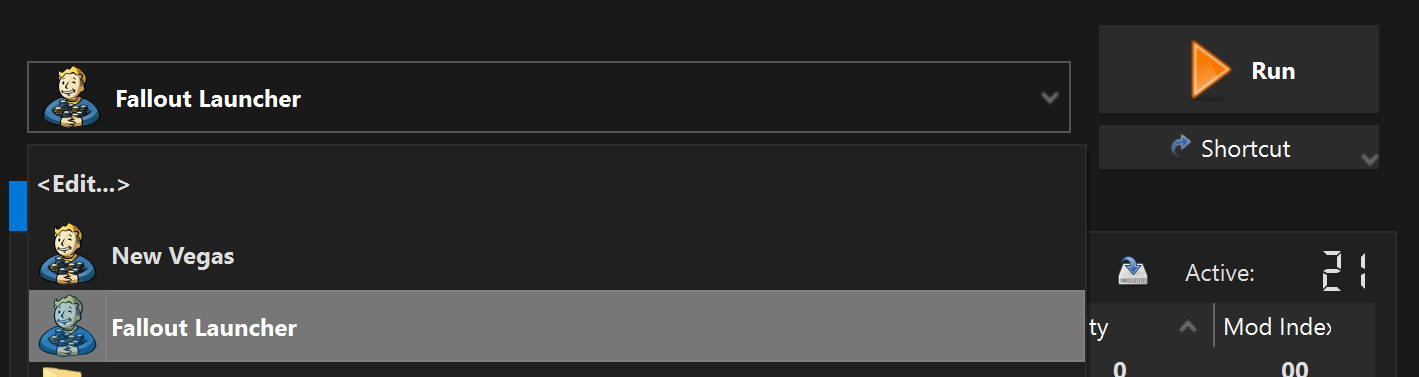
- Open the game launcher using the Fallout Launcher option in MO2.
-
Inside the launcher, click Options and do the following:
-
Select the Ultra Preset.
If you have a very weak computer, or you'd prefer to prioritize battery life, you can select the Medium preset instead.
-
Set Resolution to your monitor's native resolution.
My monitor's resolution isn't listed
If you can't find the right resolution in the launcher's list, do the following:
- Close the launcher.
- Click the button in the MO2 toolbar and select INI Editor.
- Select the
FalloutPrefs.initab. - Change the following settings in the Display section:
iSize W= Your display's horizontal resolution.iSize H= Your display's vertical resolution.
-
-
Close the launcher.
Mod Installation Instructions
When the guide says to install a mod, it will be formatted as Main File - Example 1.5, this is referring to the mod's category on Nexus and file name.
Unless otherwise specified, use the Mod Manager download.
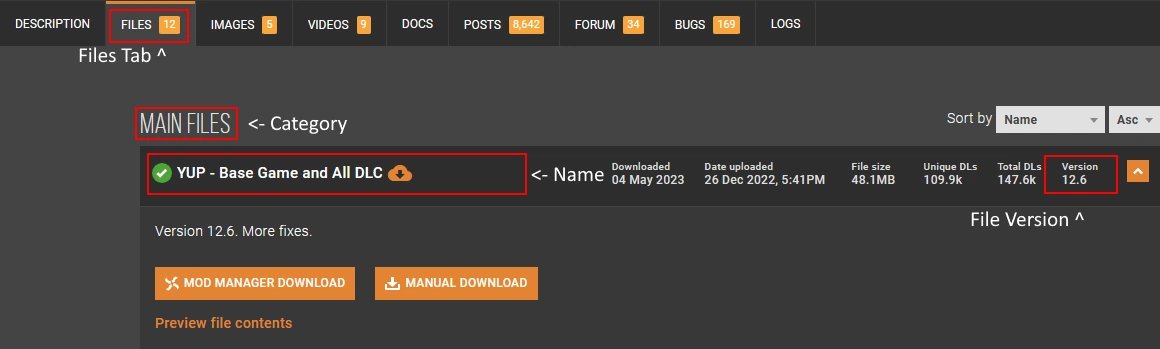
The standard procedure, through MO2, is as follows:
- Download the indicated file(s).
- Open the Downloads tab in MO2 (below the executable selector on the right).
- Double-click on the mod to install it.
- Enable the mod on the left pane by ticking its checkbox.
If downloading through the manager is not an option, do the following:
- Click the Manual Download button.
- Once the download has finished, click the button in MO2's toolbar.
- From the new window, navigate to where the file was downloaded to and double-click it.
- Finish the install as you would with a standard mod.
When installing a mod, MO2 might prompt you with multiple choices.
- Rename appears when you are trying to install a file with the same name as an existing one. If you are installing, for example, a secondary file necessary for the mod to work, then rename it accordingly with the name drop-down list or by typing the name manually.
- Replace should be used if you are updating from an old version of a mod. This option will automatically delete all the files from the old version of the mod and replace them with the ones from the new version.
- Merge should only be used when you are sure the mod will not be updated and in situations where a hotfix is uploaded as separate file. Avoid it if you can, for maximum modularity.