Setup
Before we begin, you will need to install some additional software and make some small tweaks to your system.
Install Visual C++ Redistributables.
Most engine mods and tools require the latest Visual C++ Redistributables to be installed.
To download Visual C++ Redistributables, We will use an all-in-one package that will install every version of this program using the built in package manager.
- Download the install script by clicking here
- Open File Explorer and navigate to your Downloads folder.
- Locate and double-click the file named
install_all_vcpp.bat - Follow the on-screen instructions. You will need to repeat this for each version of Visual C++ Redistributables.
- Once you have completed the installation process, restart your computer.
If you are using Heroic Games Launcher to download Fallout: New Vegas, you may skip this step.
To download Visual C++ Redistributables on SteamOS, You will need to install Protontricks.
You may do so by clicking here and then clicking Install.
Enable File Extensions
If you are using SteamOS, file extensions are enabled by default. You may skip this step.
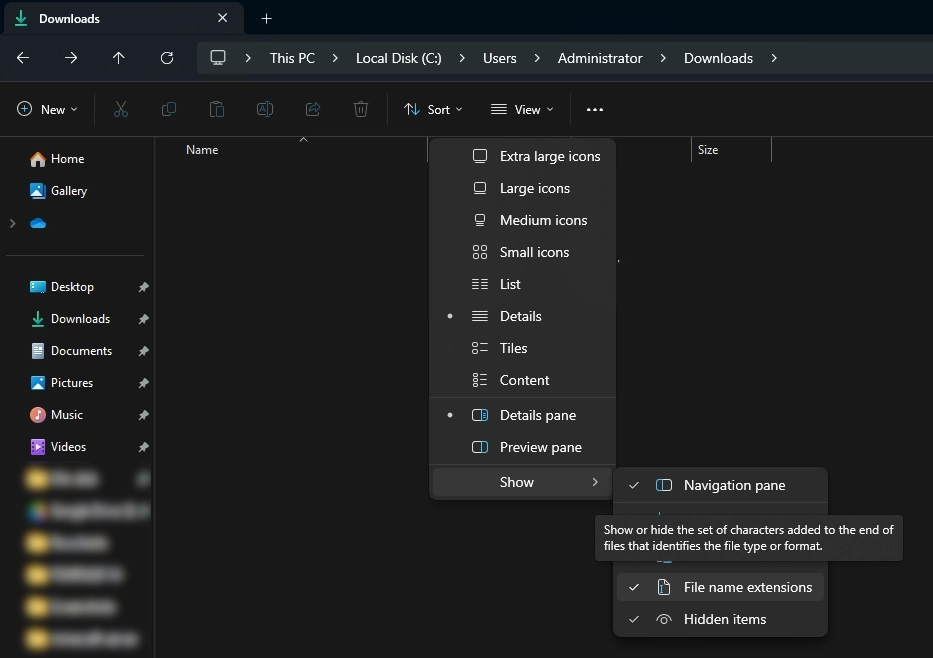
Before we start, it is important to enable file extensions in Windows. By default, File Explorer will not show file extensions (such as .exe, .dll, or .esp). These extensions are very important when going through the guide, so it is highly recommended to enable visible file extensions:
- Open File Explorer.
- Select the View tab at the top.
- Enable File name extensions in the Show section.
Base Address Randomisation
If you are using SteamOS, You may skip this step.
Base Address Randomization is a security feature in Windows that allows program's starting address to be randomized, which is not the expected behavior in 32-bit programs like Fallout: New Vegas. This leads to crashes in a modded game.
While the feature should be disabled by default, it is still recommended to sanity check if it is disabled:
- Open Windows Security from the Start Menu.
- Click on App & browser control in the left sidebar.
- Click on Exploit protection settings under Exploit protection.
- Ensure Force randomization for images (Mandatory ASLR) is set to Use default (Off).
What if I can't turn ASLR off?
If you don't want to change the global setting, you can add an exception just for the game:
- Click on Program settings.
- Click on Add program to customize.
- Select Add program by name.
- Enter
FalloutNV.exein the box and save. - Find the newly created entry on the list and click Edit.
- Find Force randomization for images (Mandatory ASLR).
- Check Override system settings, and set the toggle to Off.
Installation
A clean installation is not only required to get rid of any potential leftover mod files, but also to make sure the game is installed in a safe location. Here is what you need to know when choosing where to install your game.
- Avoid any default Windows folders: This includes but is not limited to
C:\Program Files,C:\Program Files (x86), your Desktop and your Documents folders. This is because users lack write access to Program Files, while Desktop and Documents are often managed by OneDrive. This can cause many issues with the game and any modding tools.
An example of a safe location isC:\Games - Install on an SSD if possible: Having the game on an SSD will drastically improve loading times and decrease stuttering.
- Install the game in the default library folder: This includes but is not limited to
~/.steam/steam/steamapps/commonand~/Heroic/Games - Install on internal storage if possible: Having the game on your internal storage will drastically improve loading times and decrease stuttering.
Uninstall
If you have not installed the game before, proceed to the next section.
- Navigate to
Steam\steamapps\commonand, if present, delete theFallout New Vegasfolder. - Navigate to
Documents\My Games\FalloutNVand delete all INI files inside it.
- Click here to go to your library.
- Right-click on it and select Manage Installation -> Uninstall.
- If you used an offline installer then run the
unins000.exefile in the game's Root folder.
- If you used an offline installer then run the
- Navigate to
Documents\My Games\FalloutNVand delete all INI files inside it.
- Open Epic Games Launcher and go to your Library.
- Locate Fallout: New Vegas.
- Click on 3 dots and select Uninstall from the menu.
- Navigate to
Documents\My Games\FalloutNV_Epicand delete all INI files inside it.
- Open Heroic Games Launcher and go to your Library.
- Locate Fallout: New Vegas.
- Right click on the game. Select Uninstall.
Install
If you already have Steam installed outside of any default windows folders then go directly to step 7 and install the games to your custom Steam library.
- If it is still open, completely exit out of Steam using Task Manager or the System Tray.
- Download the
steam_library_setup_tool-3.2.exefile from here. - Once downloaded, run the file and add a new entry by clicking Add Row.
- Type the chosen path under Path, e.g. C:\Games\Steam
- Click Accept then Yes if prompted to create a new folder.
- The tool will ask to exit, select OK.
- Click here to bring up the game install menu.
- Install the game. In the Install To menu, select your newly created library folder.
- Click here to go to your library.
- Install the game. Set the Install to location to a destination of your choice.
- It is necessary that you install the game outside of any Windows system folders (e.g., Program Files).
- Open Epic Games Launcher and go to your Library.
- Locate Fallout New Vegas
- Set the Install to location to a location of your choice.
- It is required that you install the game outside of any Windows system folders (e.g., Program Files).
- Open Heroic Games Launcher and go to your Library.
- Locate Fallout New Vegas
- Set the Install to location to a location of your choice.
- It is recommended that you install the game in the default location.
Post-Installation
Key Terminology
-
Root folder: Where the game is installed.
Steam\steamapps\common\Fallout New Vegas -
Data folder: Where all of the game's assets are located.
Steam\steamapps\common\Fallout New Vegas\Data
-
Root folder: Where the game is installed.
GOG Galaxy\Games\Fallout New Vegas -
Data folder: Where all of the game's assets are located.
GOG Galaxy\Games\Fallout New Vegas\Data
-
Root folder: Where the game is installed.
Epic Games\FalloutNewVegas\Fallout New Vegas English -
Data folder: Where all of the game's assets are located.
Epic Games\FalloutNewVegas\Fallout New Vegas English\Data
-
Root folder: Where the game is installed.
~/.steam/steam/steamapps/common/Fallout New Vegas -
Data folder: Where all of the game's assets are located.
~/.steam/steam/steamapps/common/Fallout New Vegas/Data -
Prefix folder: Where all of the game's Windows compatibility files and saves are located.
~/.steam/steam/steamapps/compatdata/22380
-
Root folder: Where the game is installed.
~/Games/Heroic/Fallout New Vegas/ -
Data folder: Where all of the game's assets are located.
~/Games/Heroic/Fallout New Vegas/Data -
Prefix folder: Where all of the game's Windows compatibility files and saves are located.
~/Games/Heroic/Prefixes/default/Fallout New Vegas
Generate INIs
- Run the game from your preferred launcher, or through
FalloutNVLauncher.exein the Root folder if you are using an offline copy. - Click OK to both pop-ups that say Detecting Video Hardware.
- Click OK then Exit.
Wabbajack Users!
You are done with the Introduction and Setup portion of the guide, go back to the Wabbajack page to continue installing the Viva New Vegas!