Utilities
Essential stability and performance mods, required for any Fallout: New Vegas modded setup.
Root Mods
The following mods, unlike most others, need to be installed directly into the game's Root folder, not through Mod Organizer 2.
Use the Manual Download and follow the Files to download provided.
New Vegas Script Extender (NVSE xNVSE)
An updated version of the original NVSE, which extends the scripting capabilities of the game.
Files to download
- Main Files - New Vegas Script Extender (xNVSE)
Installation instructions
-
Open the downloaded archive and move everything to the game's Root folder.
Despite its name,
nvse_steam_loader.dllis still needed with the GOG and Epic Games copies of the game. -
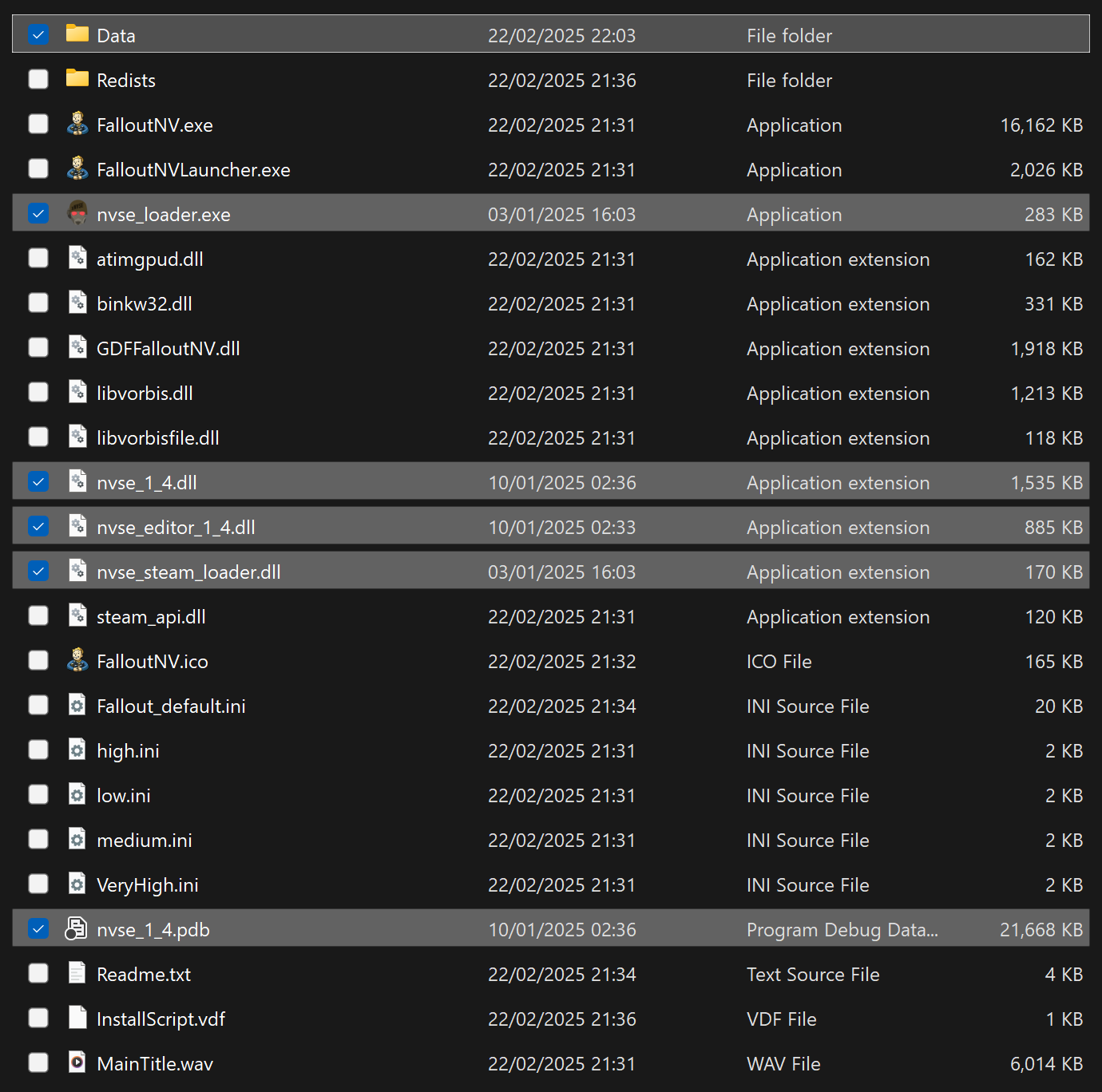
After installation, your Root folder should look like this:
LAA Patcher
Fallout: New Vegas requires patching to work properly with xNVSE. This patcher will allow the game to use up to 4 GB of RAM and automatically load the script extender.
This patcher, despite being part of the website uses only local processing (on your device).
ModdingLinked FNV Patcher
Usage instructions
- Click Choose File.
- Navigate to your Root folder in the picker dialogue.
- While still in the file picker, rename
FalloutNV.exetoFalloutNV_backup.exe - If successful, a patched
FalloutNV.exewill be placed in your Downloads directory. - Move the patched executable back to your Root folder.
Files to download
Usage instructions
- Open the downloaded archive and move everything to the game's Root folder.
- Double-click on Patcher.exe to run it.
- A Terminal window will open and after processing it should say:
Press any key to continue... - Close the Terminal and a file named
FalloutNV_backup.exeshould appear in the game's Root folder.
FNV BSA Decompressor
Decompresses the vanilla BSA files to reduce loading times and stuttering. Can also fix certain sound effects not playing.
Files to download - Main Files - FNV BSA Decompressor
Installation instructions
- Extract the archive and run
FNV BSA Decompressor.exe. - The Fallout: New Vegas and Decompressed Archives paths should be filled by default (Root folder and Data folder respectively). If they aren't, you will need to enter them manually.
- Click Decompress, wait for the process the finish, then exit the program once finished.
- Extract the archive to your Downloads folder.
- Move the
FNV BSA Decompressor.mpifile to your Universal MPI Phraser folder - Open the Universal MPI Phraser. If the FNV BSA Decompressor file is not automatically selected, click Browse to select it.
- In the box marked Fallout New Vegas select your Root folder.
- In the box marked Decompressed Archives, select your Data folder.
- Click Install MPI.
- Wait for the process to finish. Once it has finished, you may exit the program.
Ultimate Edition ESM Fixes Remastered
Optimizes and fixes thousands of records across the base game and DLC plugins to increase performance and stability.
Files to download - Main Files - Ultimate Edition ESM Fixes Remastered
Installation instructions
- Click the button next to the profiles bar in MO2 and select Open Mods folder.
- Create an empty folder called Fixed ESMs inside of the Mods folder.
- Copy the path of the folder you've just created.
- Extract the archive and run
Installer.exe - The Fallout: New Vegas path should be filled by default (Root folder). If it hasn't, you will need to enter them manually.
- Set the Mod folder path field to the one you copied earlier.
- Click Install, wait for the process the finish, then exit the program once finished.
- In Mod Organizer 2, press F5 to refresh the left pane and enable Fixed ESMs by ticking its checkbox.
- Open Dolphin
- Navigate to the folder where you installed Mod Organizer 2
- Create an empty folder called Fixed ESMs inside of the Mods folder.
-
Take note of this new folder's path. If you installed MO2 in the default folder it will be
~/modorganizer2-newvegas/Viva New Vegas/mods/Fixed ESMs -
Extract the Ultimate Edition ESM Fixes Remastered archive to your Downloads folder.
- Move the
Ultimate Edition ESM Fixes Remastered.mpifile to your Universal MPI Phraser folder. - Open the Universal MPI Phraser If the Ultimate Edition ESM Fixes Remastered file is not automatically selected, click Browse to select it.
- In the box marked Fallout New Vegas select your Root folder.
- In the box marked Mod folder, click Browse and navigate to the 'Fixed ESMs' folder you created in Step 3.
- Click Install MPI.
- Wait for the process to finish. Once it has finished, you may exit the program.
Create A Separator
- Right-click the empty space in the left pane of MO2 and select Create separator.
- Name the separator Utilities.
Mod Organizer Downloads
From now on, select Mod Manager Download to download mods - this will make the file appear in MO2's Downloads tab, ready to be installed according to the instructions earlier in the guide.
JIP LN NVSE Plugin
NVSE extension with new functions and many engine bug fixes.
Files to download
- Main Files - JIP LN NVSE Plugin
- Main Files - JIP LN Settings INI
JohnnyGuitar NVSE
Another NVSE extension similar to JIP LN.
Files to download
- Main Files - JohnnyGuitar NVSE
- JohnnyGuitar NVSE - INI Presets
- Main Files - JohnnyGuitar NVSE - All Tweaks Preset
ShowOff xNVSE Plugin
NVSE plugin adding new functions and engine-level tweaks & bugfixes.
Files to download
- Main Files - ShowOff NVSE
- Optional Files - ShowOff INI
NVTF - New Vegas Tick Fix
Fixes micro-stuttering, performance and allows playing at higher framerates (up to a safe maximum of ~120).
Files to download
- Main Files - NVTF
- Main Files - NVTF - INI
kNVSE Animation Plugin
Resource for expanding and improving the game's limited animation system.
Files to download
- Main Files - kNVSE
UIO - User Interface Organizer
Automatically ensures that multiple HUD extensions work together, as well as fixing many bugs and improving performance.
Files to download
- Main Files - UIO - User Interface Organizer
FNV Mod Limit Fix
Raises the game's file handles limit and improves performance/loading times, even if you are far below it.
Files to download
- Main Files - MLF
Yvile's Crash Logger
A DLL that logs raw crash data.
Files to download
- Main Files - Crash Logger
SteamOS Users!
The Crash Logger, ironically, is the #1 cause of crashes. If you are experiencing a crash, make sure you have the latest Visual C++ Redistributables installed on your Prefix.
Improved Console (NVSE)
Enhances the console's abilities to be able to execute and print results from all available script commands. Full scripting support inside console, including creating variables and evaluating NVSE expressions (arrays, strings) for easy mod development and prototyping. Mouse wheel scrolling included too.
Files to download - Main Files - Improved Console
Console Paste Support
Adds Ctrl+V as a hotkey to paste into the in-game console, along with a few other helpful shortcuts.
Files to download
- Main Files - Console Paste
Shader Loader - NVSE
Allows loading shaders from loose files.
Files to download
- Main Files - Shader Loader - NVSE
ISControl Enabler and Ironsights adjuster
Dynamically adds ISControl node system animation support and easy per-weapon sights adjustment.
Files to download
- Main Files - ISControl
No Exit to Main Menu
Removes the Pause Menu option for exiting to the Main Menu, helping prevent issues that can arise from starting a new game after exiting.
Files to download
- Main Files - No Exit to Main Menu
Custom INI
In this step we will take advantage of JIP LN NVSE's FalloutCustom.ini feature to improve performance and stability without affecting the main INIs.
What is FalloutCustom.ini?
FalloutCustom.ini is a special settings file that overrides all other game INIs. This INI is exclusive to the user, meaning that the game or its launcher cannot change it.
This allows you to change settings without the fear of being overwritten, and removes the need of tracking which settings go into which file.
- Click the at the top of MO2 and select INI Editor.
- Select the FalloutCustom.ini tab, which should be blank. In case it's not, clear the file.
??? warning "I can't see
FalloutCustom.ini" a. Click the button at the top of MO2 b. Enable all of the available options. -
Copy and paste the following into the editor window:
FalloutCustom.ini; Value types (prefixes): ; i = integer (whole number) ; f = float (decimal number) ; s = string (text) ; b = boolean (0 = Off, 1 = On) [Audio] ; Enables additional worker thread for minor performance improvement bMultiThreadAudio=1 ; Disables unnecessary copy operations performed on sound data bUseAudioDebugInformation=0 ; Increase audio file cache size to reduce loading stutter iAudioCacheSize=16384 iMaxSizeForCachedSound=2048 [BackgroundLoad] ; Forces cell unload on fast travel to lessen memory usage bSelectivePurgeUnusedOnFastTravel=1 ; Reduces stutter when loading multiple NPCs bBackgroundLoadLipFiles=1 [Controls] ; Disables mouse acceleration in menus ; Game does not have mouse acceleration for the camera fForegroundMouseAccelBase=0 fForegroundMouseAccelTop=0 fForegroundMouseBase=0 fForegroundMouseMult=0 [Display] ; Enables Fullscreen mode for the best performance in D3D9 ; Refer to the Performance Guide for more info bFull Screen=1 ; Use this for V-Sync control (the Launcher setting doesn't work) ; 0 = Off, 1 = On, Higher values toggle fractional V-Sync (not recommended, very laggy and disables Variable Refresh Rate) iPresentInterval=1 ; Forces highest texture quality so textures won't break if you had it set to anything lower iTexMipMapSkip=0 ; Disables actor shadows due to their low visual impact and high performance cost bDrawShadows=0 iActorShadowCountInt=0 iActorShadowCountExt=0 ; Camera FOV fDefaultWorldFOV=75.0000 ; Viewmodel FOV, values above 75 are not recommended fDefault1stPersonFOV=55.0000 ; Pip-Boy and terminal FOV fPipboy1stPersonFOV=47.0 [General] ; Forces faster cell unload to lessen memory usage bPreemptivelyUnloadCells=1 ; Spreads AI and game logic updates across 2 threads for better performance ; Values above 3 don't change anything, and the setting has nothing to do with the number of CPU cores iNumHWThreads=3 [Grass] ; Increases grass draw distance fGrassStartFadeDistance=11200 ; Ensures that 3.0 Vertex Shader is used. ; Allows drawing more grass with better performance b30GrassVS=1 [Water] ; Disables full scene reflections for a massive performance boost ; Water will use reflect LOD instead of drawing the entire world twice bForceHighDetailReflections=0 [PipBoy] ; Fixes flicker when opening Pip-Boy when its light is on fLightEffectFadeDuration=400
INI Editors
It is highly recommended to avoid changing any other INI settings not in the guide, and to avoid using tools like Bethini. The tweaks we apply here should cover most, if not all, use cases.
Testing Utilities
- Restart your device
- Install the ML Utilities Checker with Mod Organizer 2, just like the previous mods.
- Launch the game using the New Vegas option in MO2 (not NVSE).
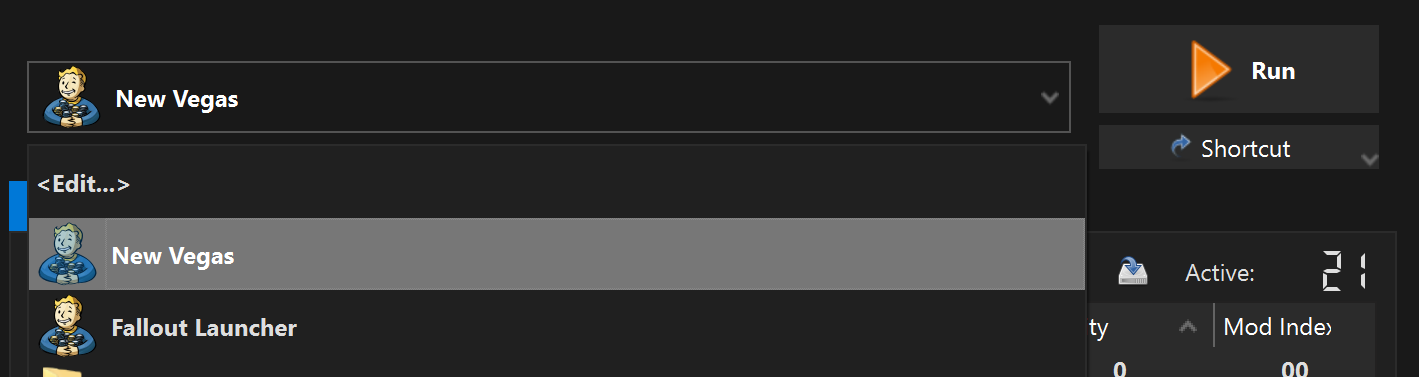
- Once the game has reached the main menu, wait a few seconds and you will see a message box from the Utilities Checker.
- Close the game and disable the ML Utilities Checker.
Performance Guide
If you are playing on SteamOS. You only need to follow the Performance Mods section of the Performance Guide. Everything else is irrelevant for your platform.
Thanks Valve!
An in-depth guide on how to fix the game's lackluster performance, display issues and alt-tabbing. Covers topics such as DXVK, framerate limiting, display modes, lag and HDR.